


MACHO
Follow our guide to ensure optimum performance.
 Back to Cheat Page
 Getting Started
Make sure to follow all steps below before opening a ticket.
Step 1: Disable Anti Virus (Can also be automated with dControl, follow the steps below.)
- Open Virus & Thread Protection
- Open Manage Settings
- Disable the following below:
- Real-Time Protection
- Cloud-Delivered Protection
- Automatic Sample Submission
- Temper Protection
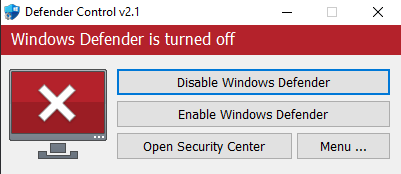
dControl: Disable Anti Virus
- Download it.
- Unzip it. ( Password is: sordum )
- Run dControl.exe as Admin
- Press Disable Windows Defender.
Step 2: Disable Firewall
- Open Firewall & Network Protection
- Disable the following below:
- Domain network
- Private Network
- Public Network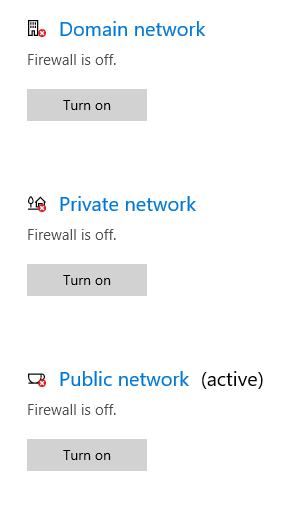
Step 3: Disable App & Browser Control
- Open App & Browser Control
- Disable the following below:
- Check apps and files
- SmartScreen for Microsoft Edge
- SmartScreen for Microsoft Store Apps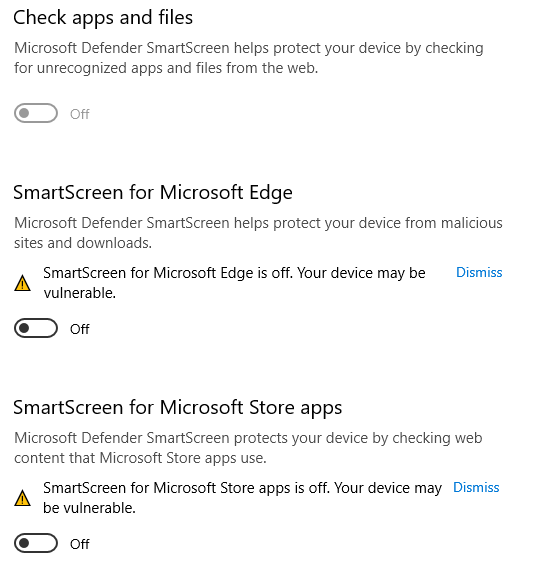
Step 4: Disable Core Isolation
- Open Device Security
- Open Core Isolation Details
- Disable the following below:
- Memory Integrity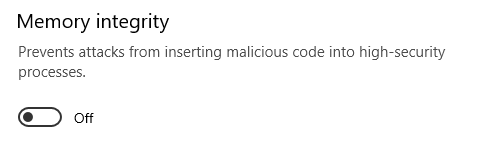
Step 5: Disable Secure Boot
Identifying your motherboard:
- Press Windows + R to open the Run dialog.
- Type msinfo32 and press Enter.
- Look for the following fields:
- BaseBoard Manufacturer
- BaseBoard Product
- BaseBoard Version
- Video's how to disable Secure Boot:
- Asus
- MSI
- Dell
- AsRock
- GigaByte - To open BIOS
- Restart your computer and enter the BIOS/UEFI settings (usually by pressing F2, F10, DEL, or ESC during startup).
- Find the Secure Boot setting in your BIOS menu.
- Go to Advanced mode (Not for all the same)
- Set it to Disabled. This option is usually in either the Security tab, the Boot tab, or the Authentication tab.
- For Asus delete Secure Boot Keys
- Save the changes and exit the BIOS/UEFI.
Step 6: Install Winrar
- Download Winrar -> Here
- Run the installer
- Follow the on-screen instructions
Step 7: Install / Update DirectX
- Download DirectX -> Here
- Run the installer
- Disable the option "install bing"
- Follow the on-screen instructions