


CHEESY
Once you are done with Getting Started, follow the steps below!
 Back to Getting Started
 Step 1: Pre Setup 🛠️
Go to Discord overlay settings
Set your display settings as the screen below
Make sure you only got normal Discord open (no external Discord program)
Now ensure none of the 3 following icons are red
On first-time setup or after updates, a quick restart is needed to initialize everything properly


Step 2: Download the Loader 🖥️
Download Loader HERE
Run loader as Admin
If its your first time using press "Register" otherwise "Login" and continue
Select Fortnite and press Load - If you want to Spoof follow the steps below!
Go to Cleaner page and press "Start Cleaning" (IS NEEDED OTHERWISE SPOOF BUTTON DOESNT WORK)
Go to products page and select Spoofer and press Load
When getting success you are ready to go!
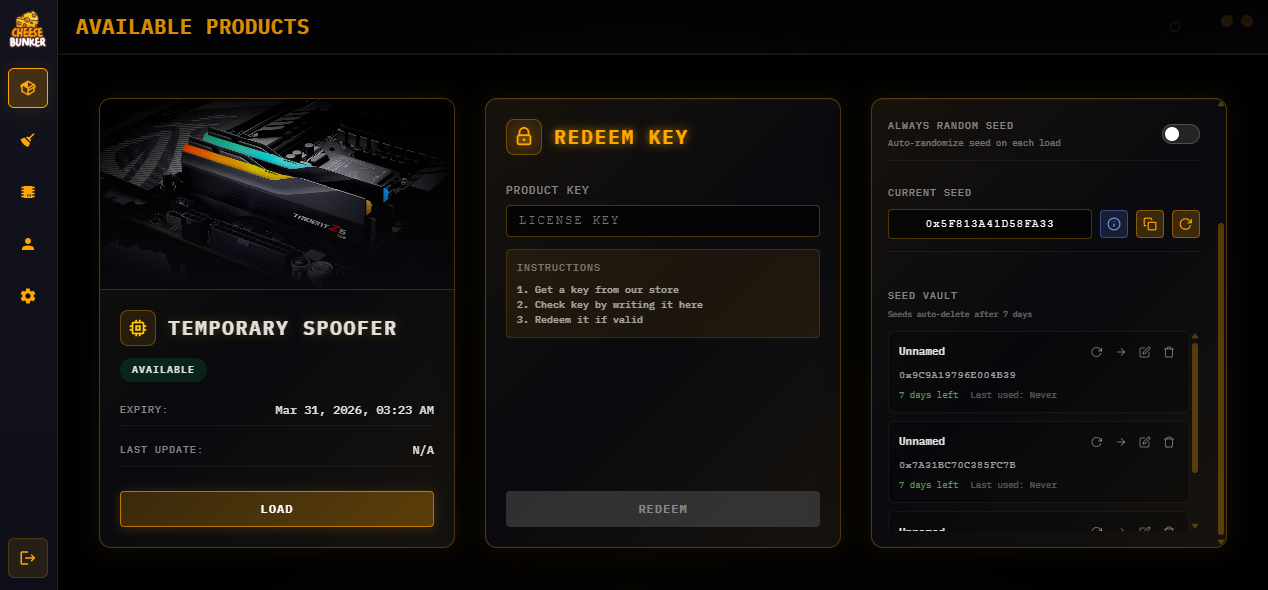
Cleaning Instructions
Click the Clean button, even if your operating system is fresh. This will clean and spoof certain components of your operating system
Once cleaning is complete please head over to the spoof button here all you would need to do is hit spoof and wait
The first time you run our spoofer it'll prompt you to restart as it needs to setup all the dependencies needed
Login to the spoofer and click the spoof button, once it has prompted to be fully spoofed and the loader closes you can compare your serials in a HWID Checker
If everything is changed your good to go and play your favourite EAC / BE game
Menu Keybind = Insert
Trouble Shooting
Product / Spoofer ban.
If a file says "you are banned", anti-crack was triggered
Close any prohibited tools before launching
Common blocked tools include:
HTTPDebugger
x64dbg / x32dbg
HxD
dnSpy
Fiddler Everywhere
CosmoSupportTool
ProcessHacker
If you believe this is a false ban → contact support
BSOD (Blue Screen) fixes.
Update ALL drivers (including GPU)
Disable TPM in BIOS
Disable Fast Startup in BIOS
Disable Hyper-V
Enable Virtualization (VT-x / SVM) in BIOS
Uninstall ALL VPN clients
Open CMD as ADMIN and run:
sfc /scannowDISM /Online /Cleanup-Image /RestoreHealthRestart PC and retry
If not fixed → clean Windows reinstall (delete all partitions)
Spoofer not working.
- Disconnect from any VPN or proxy
How to find DMP file.
Open File Explorer (Win + E)
Go to:
C:\Windows\MinidumpLocate .dmp files
If Minidump folder missing.
Press Win + R → type:
sysdm.cplGo to Advanced → Startup and Recovery → Settings
Set "Write debugging information" to:
- Automatic memory dump OR Small memory dump (256 KB)
Ensure path is:
%SystemRoot%\MinidumpApply and restart PC
Still cannot find DMP.
Open File Explorer
Enable View → Show → Hidden items
Check
C:\Windows\Minidumpagain
Sending DMP to support.
Run Discord as ADMIN
Create a support ticket
Attach .dmp file
Include details:
When BSOD happens (spoof / startup / in-game)
Your Windows version (winver)
Extra Troubleshooting
Error Code: 0xBAD01 — Discord installation folder not found.
Head to your Discord installation folder. It's usually located in:
C:\Users\YourName\AppData\Local\Discordor
C:\ProgramData\User\Discord
Once found, take a screenshot of the folder and send it in your ticket
After that, wait for staff for further assistance
🔴 Error Code: 0xBAD02 — Discord overlay failed to initialize.
This can happen if the Discord overlay doesn't start properly
Simply restart your PC and try again — this usually fixes it
🔴 Error Code: 0xBAD04 — Random initialization issue.
A system restart should usually fix this
If the error still shows after multiple restarts, let support know so we can look deeper
🔴 Error Code: 0xBAD05 — Discord is running with elevated permissions (admin mode).
This might happen if Discord is running as administrator, which can interfere
Fully close Discord, then reopen it without admin privileges
If the error persists, follow the same steps as 0xBAD01 (locate install folder, send screenshot)
⚠️ "Failed to connect to Discord overlay…"
This means the Discord legacy overlay is either disabled or not running with your game
Make sure to:
Open Discord settings
Go to Game Overlay
Enable "Legacy Overlay"
Confirm it shows up in-game when you press the overlay hotkey (default: Shift + `)